ceoelection-oldelectoralroll.jk.gov.in Download Old Electoral Rolls (EVL) : CEO Jammu & Kashmir
Organisation : CEO Jammu & Kashmir
Facility Name : Download Old Electoral Rolls (EVL)
State : Jammu & Kashmir
Website : https://ceoelection-oldelectoralroll.jk.gov.in/evl/
What is CEO Jammu & Kashmir Electoral Roll Portal?
The Electoral Roll portal, often referred to as the Voter List or Electoral Roll Search portal, is an online platform provided by the Election Commission of J&K where citizens of J&K can access information related to electoral rolls.
The portal allows individuals to create their accounts, search for their names in the electoral roll, verify their voter registration details, make necessary payments, and download their Voter Details page. This streamlined process enhances accessibility and transparency, empowering citizens to engage effectively with the electoral system.
How To Download Old Electoral Rolls in Jammu & Kashmir?
To download Old Electoral Rolls in Jammu & Kashmir, Follow the below steps
Steps:
Step-1 : Go to the link given above
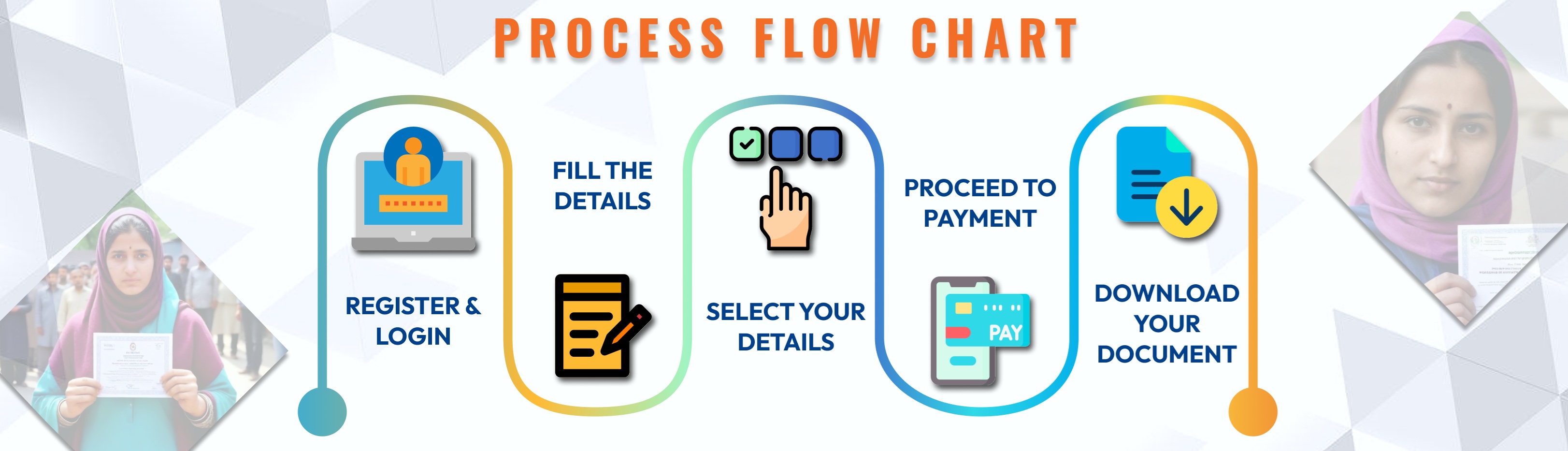
Step-2 : Register or Login
Step-3 : Fill the Details
Step-4 : Select Your Details
Step-5 : Proceed To Payment
Step-6 : Download Document
EVL Dashboard:
Users can refer to this user manual/guide to use the EVL Web Portal. All the processes are described below in detail.
EVL Portal Home:
This is the Home page of the website, it loads when the user enters the website URL, Steps are mentioned below.
Step 1 : Open the web browser.
Step 2 : Enter the Chief Electoral Officer, Jammu & Kashmir Portal URL, and the EVL Dashboard will be opened. Department information will appear and the users can get information about the official portal and contact information and access the LOG-IN options.
1) Main Menus:
** LOGIN
** User Dashboard
** Get Voter List
** User profile
** Logout
1. Log-In as First-Time User/Existing User:
** Accessing the Portal:
** Open your web browser and navigate to the LogIn/SignUp portal’s URL.
Login Form:
** Click the “Sign In” or “Login” button to access the login form.
** Login Screen appears on the screen with the Mobile No Input field.
Provide Login Credentials:
** Enter your Working mobile Number to receive OTP.
** Then click the Confirm button to receive OTP on Entered Mobile Number.
OTP Verification:
** Enter the OTP received on your registered mobile number.
** Then click on the submit button to proceed.
** In case not receive OTP on your device then Resend the OTP by using the Resend OTP button given on the LogIn screen
One Time Registration Details:
** The One-Time Registration page only comes once when new users try to log in to the portal to fill in personal Information.
** Users must provide pieces of information like First Name, Last Name(optional), Email Id, Document Type, Document Number, and Captcha to procced the Next page.
Additional Tips:
** Ensure all information provided during registration is accurate to avoid issues with account verification.
** Ensure that the Entered Mobile number is valid and active for receiving OTP.
Accessing Voter List:
** After logging into your account, you can easily access the voter list by selecting the “Get Voter List” option from the menu.
** Once chosen, you’ll be directed straight to the voter search page where you can input your search criteria to find the desired voter list. From there, you can view and verify the voter information as needed.
1. Select Associated Year:
From the dropdown menu, choose the associated year from the options provided (1951, 1957, 1972, or 2008).
2. Select Tehsil, Halka Patwar, and Mohalla/Mozza:
** Once the year is selected, choose Tehsil from the dropdown of Tehsil.
** After selecting the tehsil, choose the Halka Patwar from the dropdown menu according to the selected tehsil.
** Based on the selected Halka Patwar, choose the Mohalla/Ward from the dropdown menu.
3. Search Voter Name/House No/Father/Husband/Mother Name:
** Enter the voter’s name in the search field provided. As you type, the data will be filtered according to the alphabet you are typing.
** Either search the House No from the given dropdown options available in House Number Field.
** Either search the Father/Husband/Mother Name from the given dropdown options available in the Father/Husband/Mother Name Field.
View Relevant Table:
** A table displaying the filtered data will appear, showing voters matching the entered name.
** Also select the Purpose of the document from the dropdown options without filling it application can’t proceed
Verify Voter Information:
** Verify the relevant information in the table, such as the voter’s name, father/husband/wife name, and house number.
Navigate to Payment Page:
** After verifying the correct data, click on the “Next” button to proceed to the payment page
Make Payment:
** The page will redirect to the payment page, where you can pay the requested amount to access the complete voter list.
** Once the payment is complete the application views the payment complete message.
Access Complete Voter List:
** After successful payment, the page will show the relevent Voter list Document.
Download and Print Options:
** You will have access to download the PDF version of the voter list for your records.
** Additionally, you can print the voter list directly from the page if needed
User Dashboard:
This dashboard serves as a centralized hub, offering users convenient access to view and download all relevant voter materials they have acquired through successful transactions. Through a streamlined interface, users can seamlessly navigate their dashboard to explore and retrieve the documents they have purchased.
User Profile:
The User Profile page provides a comprehensive overview of the user’s essential information, including their Full Name, Mobile Number, and Email Address. This page serves as a centralized location for users to manage and review their details.
LogOut:
** Click on “Logout” or your profile icon.
** Confirm the logout action.
** You will be redirected to the login page.
** Ensure your session is securely terminated.